iOS 27 Siri Camera Mode: What It Does With Text, and Who Gets It
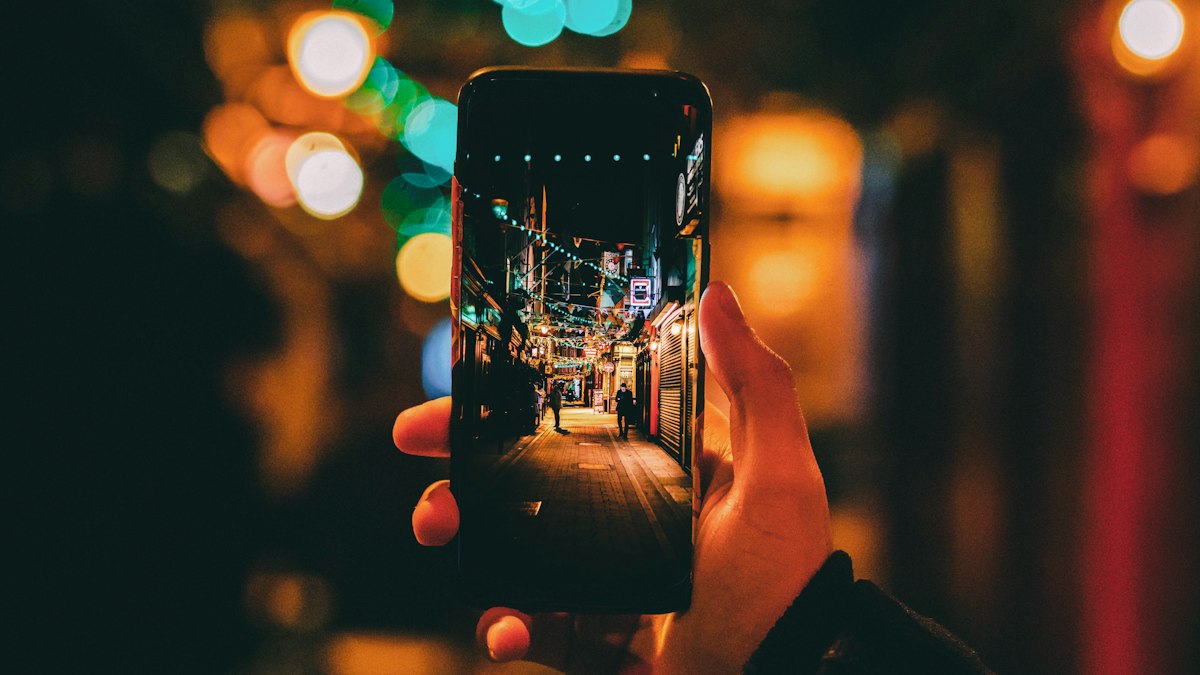
iOS 27 came out on Monday, 14 September. The feature getting the most attention is a new mode in the Camera app, simply called Siri. Point the camera at something, tap the shutter, and Siri tells you what it sees or offers to do something with it.
For text, that turns out to be useful. It’s also a feature a large share of people who installed iOS 27 this week can’t see. iOS 27 runs on iPhones back to the iPhone 11. The iOS 27 Siri camera mode runs on far fewer.
This covers what it does with text, exactly who gets it, and what the rest of us have instead.
If you’re outside the group that gets it (an older iPhone or iPad, the EU, or a language other than English), Textora covers a lot of the same ground on any iPhone or iPad running iOS 16 or later, including in the EU. It adds business cards to Contacts, turns a schedule into several Calendar events, creates Reminders, reads text aloud, translates, and reads QR codes, and it keeps a searchable history of everything you scan. There’s a side-by-side comparison near the end.
Who gets Siri mode in Camera
Siri mode is part of Siri AI, the rebuilt Siri. Apple’s own support guide spells out the conditions, and all of them have to be true:
| Requirement | What Apple says |
|---|---|
| iPhone | ”an Apple Intelligence-enabled iPhone 15 Pro, iPhone 15 Pro Max, or iPhone 16 model or later” |
| Software | iOS 27, with Siri AI (Beta) turned on |
| Language | Siri and device language set to a supported language; “Available in English to start” |
| Region | Not available in the China mainland or the European Union |
| Limits | ”Usage limits may apply” |
A few things in that table deserve a second look.
It’s a beta. iOS 27 is a finished release; Siri AI inside it is not. MacRumors reports there’s a waitlist: you request access under Settings, Siri, “Try Siri AI (Beta)”, and some people get in within minutes while others wait hours or days. If Siri mode isn’t in your Camera app on a supported phone, check this first.
English only, for now. Apple’s September announcement says Siri AI “will expand to French, Japanese, Korean, Portuguese, and Spanish next month.” MacRumors expects that to come with iOS 27.1, but Apple hasn’t named the version. If your phone is set to German or Turkish, you’re waiting for an announcement that hasn’t been made yet.
Not in the EU or China. Apple’s feature availability page lists Siri Mode in Camera as “Available in English - Not available in the China mainland or the European Union.” I’ve covered what EU iPhone owners keep and lose with Siri AI separately, so I won’t repeat it here.
How to open it
Apple gives two routes. If you have Siri AI turned on, open Camera and switch to the Siri mode. On phones with a Camera Control button, you can also click and hold it, then tap Siri.
Then:
- Point the camera at the thing you want to ask about. Get the text reasonably large and flat in the frame.
- Tap an action if one appears. Apple’s example is pointing at a restaurant check and tapping “Split Bill with Apple Cash.”
- Or ask a question. Apple’s example is pointing at ingredients and asking what you can make with them.
- Swipe down on Siri’s answer to keep the conversation going with follow-up questions.
The Apple Post’s walkthrough adds a sensible note: what Siri offers “will depend on what the camera sees.” There’s no menu of text tools to pick from. The actions appear based on what’s in front of it.
What it does with text
This is where it goes beyond older text features. Instead of handing you a block of characters to copy, it tries to work out what the text is and put it somewhere useful.
Confirmed by Apple:
- Split a restaurant bill with friends using Apple Cash. The footnote on Apple’s June announcement says it’s “Only available in the U.S. on eligible iPhone and iPad devices.”
- Turn a poster into several calendar events. Apple’s launch example: look at a music festival poster, ask for your favourite artists’ set times, and have Siri “automatically create multiple calendar events for the weekend.”
Listed in MacRumors’ iOS 27 Visual Intelligence guide (written during the beta, so check against your own phone):
- Import contacts from a photo of a business card.
- Import multiple events into Calendar or Reminders at once from a schedule or list.
- Create a Wallet pass from a photo of a membership or pass barcode.
- Read laundry labels and give you plain instructions.
- Read ingredient lists so you can check for allergens.
- Transcribe messy written notes or lists into text.
- Decipher confusing parking signs.
The guide also describes a nutrition feature for food, with a limit: it won’t give you calorie counts. It tells you whether something has nutritional value and what’s good or bad about it.
Visual Intelligence’s older text tools, which the guide lists as translating, summarising and reading text aloud, are still part of the package.
One caution that matters more for text than for plants. Siri mode is a language model reading an image and answering, not a scanner returning exactly what’s printed. For a business card, you can glance at the new contact and fix a typo. For an allergen check on a label, read the label yourself too. A confident summary is still a summary.
On-device or cloud?
Apple doesn’t break this down for Siri mode, so I won’t guess. What it does say:
- The new Apple Foundation Models “run on device and on servers using Private Cloud Compute.”
- Its support pages list Siri AI among “Apple Intelligence features that rely on server-side models” and are subject to daily usage limits.
- When Private Cloud Compute handles a request, Apple says users’ “personal data is not stored nor made accessible to Apple or anyone else,” and that outside experts can verify this.
Reasonable reading: some of what you point Siri mode at will be processed on Apple’s servers, under those privacy terms. Which requests, Apple hasn’t said. If you need a guarantee that a document never leaves the phone, Siri mode doesn’t give you one in writing.
What you have instead, by iPhone
Here’s the part most “how to use Siri mode” articles skip.
| Your situation | What reads text from the camera |
|---|---|
| iPhone 15 Pro or later, Siri AI on, English, outside the EU and China | Siri mode in Camera |
| iPhone 15 Pro or later, but no Siri AI (EU, China, non-English language, or not turned on) | Visual Intelligence, the pre-Siri-AI version |
| iPhone 11 to 14, iPhone 15 and 15 Plus, iPhone SE (2nd and 3rd generation) | Live Text |
iPhone 15 Pro or later without Siri AI
You still have Visual Intelligence, just not inside the Camera app. Apple’s support guide lists the other ways in: click and hold the Camera Control on supported models, set it to the Action button, or add it to the Lock Screen or Control Center.
For text, Apple says it can “translate or summarize text,” and it can create a calendar event from something like a flyer. The newer tricks above, like importing several events at once or building a Wallet pass, are described as part of the iOS 27 Siri camera mode, so don’t expect them here. Apple Intelligence itself supports far more languages than Siri AI does today (Apple’s support guide lists 16, including German, Italian, Turkish and Vietnamese), so this route may work in your language while Siri mode doesn’t.
iPhone 11 through iPhone 15 and 15 Plus
These phones got iOS 27 but don’t support Apple Intelligence, so there’s no Visual Intelligence and no Siri mode. What they have is Live Text, which Apple introduced in iOS 15:
- Open Camera and point it at text.
- When a yellow frame appears around the text, tap the text button.
- Touch and hold to select, then Copy, Select All, Look Up, Translate, Search Web or Share.
Live Text also offers quick actions depending on the content: call a phone number, open a website, start an email, convert a currency. When Apple introduced it, it described Live Text as using “on-device intelligence.”
It’s more literal than Siri mode, and for plain text extraction that’s often what you want. It won’t turn a business card into a contact; Textora does, and I’ve covered the details in scanning business cards to Contacts. If Live Text fails on a document, check it’s in a language Apple’s Live Text supports before blaming the photo, and if the button has vanished altogether, work through Live Text not working on iPhone, which covers the two separate switches that control it. And there are other ways to copy text from an image on iPhone that don’t depend on your model.
Siri mode vs Textora for text
Siri mode is quick for one thing at a time: this card, this label, right now. Textora does much of the same text work without the model, region or language requirements, and it keeps what you scan so you can find it again.
| Siri mode in Camera | Textora | |
|---|---|---|
| Devices | Apple Intelligence-enabled iPhone 15 Pro or later | Any iPhone or iPad on iOS 16 or later |
| Language | English to start | Not tied to Siri’s language setting |
| EU | Not available | Available |
| Business card to Contacts | Yes | Yes, with a review sheet first |
| Several Calendar events from a schedule | Yes | Yes |
| Reminders | Yes | Yes, including for dates found in a scan, such as expiry dates |
| Read text aloud | Yes | Yes, on the device |
| Translate | Yes | Yes, about 30 languages; on the iPhone on iOS 18 or later when the language is downloaded |
| QR codes and barcodes | Wallet passes from a barcode | Read during a scan |
| Multi-page scans and searchable PDF | Not described by Apple | Yes |
| History you can search later | Not described by Apple | Yes, and cards show up in Spotlight |
| Where the image is read | Apple hasn’t said which requests go to Private Cloud Compute | Text recognition runs on the phone; the photo isn’t uploaded to read it |
Two things only Siri mode does: create Wallet passes, and split a bill with Apple Cash (US only).
Textora’s smart Knowledge Cards and cloud translation are off unless you turn them on, and when they’re on, sensitive values such as card numbers and phone numbers are masked before only the text is sent. With cloud AI off you still get the full recognised text on the phone. There’s no sign-up needed to start scanning.
If you’ve got Siri mode, use it for quick questions about what’s in front of you. If you don’t, or you want business cards, schedules and documents that are still searchable next month, get Textora free on the App Store.
I build Textora. Facts about Siri mode, Visual Intelligence and Live Text above are taken from Apple’s own pages and the reporting linked below, checked on 16 September 2026; Siri AI is a beta, so details will change. Email support@textora.app if something has changed.
Sources: Apple Newsroom — Siri AI, a profoundly more capable and personal assistant, is here (September 2026) · Apple Newsroom — Apple introduces Siri AI (June 2026) · Apple Newsroom — Apple unveils innovative features and intelligence experiences across services (June 2026) · Apple Support — Siri AI: Use Siri mode in Camera on iPhone · Apple Support — Learn about what’s around you with Visual Intelligence · Apple Support — Use Live Text with your iPhone camera · Apple — iOS and iPadOS feature availability · Apple Newsroom — iOS 15 (June 2021) · MacRumors — Here’s What’s New With Visual Intelligence in iOS 27 · MacRumors — Apple Releases iOS 27 and iPadOS 27 · MacRumors — iOS 27’s Siri AI has a waitlist · MacRumors — iOS 27.1: New Features to Expect and Release Date · The Apple Post — How to use Siri mode in the Camera app on iOS 27
Frequently asked questions
Why don't I see Siri mode in the Camera app on iOS 27?
Which iPhones support the iOS 27 Siri camera mode?
When will Siri mode in Camera work in languages other than English?
Does Siri mode in Camera process images on the iPhone or in the cloud?
What can older iPhones use instead of Siri mode to read text?
Ready to extract text from photos in seconds?
Textora uses AI to scan and organize text from any image — receipts, menus, handwritten notes, and more. Works offline, recognises 12 languages on-device.
Download on the App Store